Get StoryBook AI
Clone the repository with Git, or download it as a ZIP from GitHub and extract it to a folder on your computer.
StoryBook needs Node.js. The start scripts check whether Node.js is installed and point you to nodejs.org if it is missing.
Start StoryBook
Choose your operating system. The start scripts check for Node.js, run npm install the first time only, and then start StoryBook.
Windows
Double-click:
macOS
Double-click:
On first launch, macOS may warn that the script is from an unidentified developer. Right-click starta.command, choose Open, then confirm. This should only be needed once.
Linux
Open a terminal in the StoryBook AI folder and run:
npm install contacts the npm registry while dependencies are installed. That setup step is separate from StoryBook's local-first runtime while you write.
Open StoryBook
Once StoryBook has started, open this address in your browser:
The terminal will also show the local address when the development server starts.
Connect your local AI
Run a local model using Ollama, LM Studio or another compatible local endpoint. StoryBook defaults to a local address and is designed for AI running on your own computer or network.
StoryBook runs in your browser at http://localhost:5175. Ollama needs to allow requests from that address. Start Ollama with:
If this is missing, StoryBook may appear unable to connect even though Ollama is running.
StoryBook lets you choose separate models for Writing and Review. A creative prose model can be used for drafting and rewriting, while a more analytical instruction-following model can handle review-oriented work. You can also use the same model for both.
Writing model
Used for Draft, Extend, Elaborate, Rewrite, Recast and other prose-oriented assistance.
Review model
Used for analytical work such as reviewing text and extracting structured information.
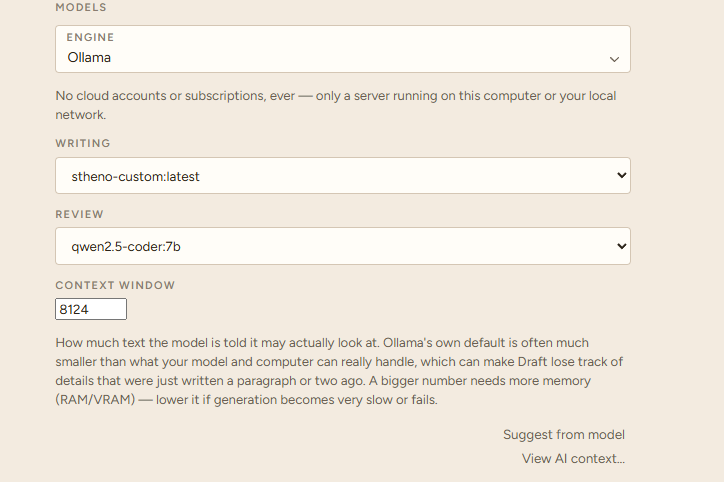
There is no single best prose model for every writer or machine. Try models that fit your hardware, language and preferred style. StoryBook does not depend on one specific model.
Start writing
Create a manuscript, give it a title and open the first chapter. You can write directly in the editor or use planning tools such as Brainstorm, Synopsis and chapter briefs first.
You do not need to learn every feature before you begin. Start simple and add structure when the story needs it.
Interface: StoryBook is available in English, Swedish and Norwegian Bokmål, with light and dark themes. Your manuscript language is configured separately.
Explore StoryBook features →Need help?
If StoryBook cannot see your AI model, first make sure the local AI server is running and that the configured endpoint matches the address shown by Ollama or LM Studio.
Make sure Ollama was started with OLLAMA_ORIGINS=http://localhost:5175. Without that setting, the browser request can be blocked even though the Ollama server itself is running.